Saturday, July 7, 2007

Learning Plan Tutorial Script

The following is a draft script for the Learning Plan Tutorial. The tutorial will display screen actions as indicated within the [brackets]. A voice overlay will "narrate" an overview in coordination with the screen actions. The CTL Key is used to enhance the Cursor during recording. The enhanced cursor is used to focus the attention of the viewer.

Learning Plan Tutorial Script

[Logon Screen showing Student ID and Password being entered. Place cursor over Submit Logon button and Press CTL key. Press Submit Logon button.]

“Before you can access your learning plan, you must log onto the CPCS Online Student System. Enter your UMass Student ID Number and Password and Press the Submit Logon Button.”

[Place cursor over Learning Plan Button on the CPCS Student Menu and press the CTL Key. Press the Learning Plan button to continue.]

“You enter the Online System through your learning plan. Pres the Learning Plan button to continue.”

[Main CPCS System window] [Place cursor over name at top of the screen. Make two slow circles with cursor around name. Pause; bring cursor to main area below name. Pause and make two slow circles around this main viewing area. Pause and bring cursor over to the navigation links on the left and stop over the Core knowledge area. Pause and press the CTL key.]

“You’re learning plan maps out the requirements and options you select to complete your graduation. It will prepare you for registration and guide you and your advisor as it tracks your progress.”

“This is the main system window and it will allow you to view and maintain your Learning Plan. Your Navigation Links are located along the left side of the page.”

[Fade in and out of Levels I through IV]

“All Learning Plans are divided into six categories. The first four are known as the core knowledge competencies. There are 29 competencies required in the Core Knowledge & Skills area. These competencies are spread across three different levels that require increasingly complex skills or more thorough understanding of concepts and theories.”

[Main window] [Select the link for Level I. Select first competency in the required section and press CTL key. Select first competency in elective section and press CTL Key. Place cursor over save button and Press the CTL Key.]

“You will do a combination of required and elective competencies in the Levels I through III section of the Learning Plan.

"After selecting your competencies you can save your plan by pressing the save button at the bottom.”

[Main window] [Select the link for Level IV, Show capstone selection list and press the CTL Key.]

“As a final competency you will complete a Capstone Project in Level IV.”

[Main window] [Select the link for Portfolio and Pause]

“As you work on demonstrating competencies, you will also be working on developing your writing skills and your presentation skills. You are evaluated for these skills through a Portfolio system. As you move through the curriculum, you will collect products that demonstrate your skills in writing and speaking, and when you are ready, you will select three of those products to be evaluated by a Portfolio team to get the credit.”

[Main window] [Select the link for Major Requirements. Select first major competency and press CTL key. Select the first Concentration competency and press CTL Key. Place cursor over save button and Press the CTL Key.]

“Each major has 6 required competencies that address the kinds of skills and knowledge that are particularly relevant to that field of study and practice. When you select a major, you will then enter the required competencies for that major on your learning plan.”

“The concentrations allow students to tailor their majors by specializing in a particular area of practice; there are 4 competencies in the Concentration area to complete the major section of the learning plan.”

Wednesday, May 16, 2007

Test Website

The page layout with the crowd in front of a stage was selected for the CPCS Tutorial Website. The button proximity and repetition best integrate with the existing CPCS website layout. The black and white provide some contrast and add to the theater atmosphere.

As the cursor moves over the film canister buttons the message on the center stage changes to reflect information about those Tutorials.

The first set of Tutorials will include the CPCS Tutorials in QuickTime for the non-flash version of the website. The Wiser Tutorials will follow in QuickTime format. A later phase will include a Flash version of the tutorials.

Action outlines are being prepared for the Learning Plan Tutorial and will include narration for audio overlays.

I have set up a test website. The programs are in a test phase so beware that things could change. Feel free to follow the progress.

Saturday, May 5, 2007

Wiser System Overlay Page


This is the Wiser Overlay Image that is activated on the Tutorial Main Page as the cursor passes over the Film Canister labeled Wiser. It replaces the Main Page Introduction with a Wiser System Specific Introduction.


Version 2:


CPCS Online Sytem Overlay Page


This is the CPCS Overlay Image that is activated on the Tutorial Main Page as the cursor passes over the Film Canister labeled CPCS. It replaces the Main Page Introduction with a CPCS System Specific Introduction.


Version 2:

Tutorial Home Page Template


Student Online Systems Tutorial Home Page.

The banner is the standard banner for the College of Public and Community Services website.

Below the banner exists a row of white text links with a black border. Both links return you to the CPCS Website. This row of general navigation links follow the standards of the CPCS Website.

Below Left you have a white box with images of movie film canisters. Each Canister is labeled for a link to a more specific Tutorial Page and will have a Disjointed Rollover that will change the bottom right Crowd and Stage image to display the appropriate link information. These links follow the standards of the CPCS website.

Version 2:


Thursday, April 19, 2007

Web Page Descriptions

Tutorial Home Page

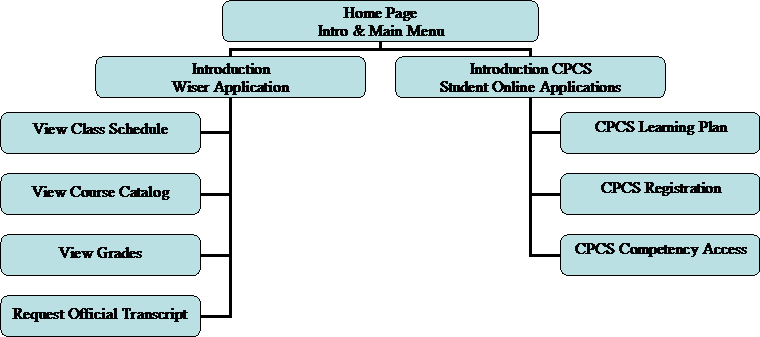
The Tutorial Home Page will introduce the two Student Online Systems and what functions are performed by each system. Navigation Links will provide access to each systems main page.


Wiser Application Introduction Page

The Wiser Introduction Page will provide links to each of the Wiser System tutorials. The tutorials will be presented in learning modules that correspond with the functions outlined in the Home Page.


CPCS Application Introduction Page

The CPCS Introduction Page will provide links to each of the CPCS System Application tutorials. The tutorials will be presented in learning modules that correspond with the functions outlined in the Home Page.


Tutorial Modules


The Tutorial Modules will be presented in QuickTime Movie format using screen capture software and instructional narration.

Wednesday, April 18, 2007

Multimedia Project Introduction

The College of Public and Community Service at the University of Massachusetts Boston provides an innovative approach to learning where students have the flexibility to produce a learning plan that meets their individual objectives and are evaluated through a competency based system. Demonstrating a required skill can take many different forms and competency evaluations are produced in a narrative form that replace the traditional letter grade system used by most colleges. Because of this flexibility a separate online system was developed to register for and track graduation requirements.

The unique CPCS online systems require specialized training specific to its students. Although there are text based instructions and training workshops available, this project will develop a multimedia tutorial accessible from the college website. It will offer flexibility for independent study and enhance the training workshops currently offered.

There is a general need for multimedia based training for all student online systems so this project will be developed in two phases. The first phase will address the unique CPCS online applications and the second phase will address the universal online applications used by all students at UMass Boston.


Photo Sharing and Video Hosting at Photobucket